
Site search is useful when visitors know what they want but struggle to find it through the existing navigation. Base the decision on their tasks and the variety of content. A small catalogue with many part numbers may need search, while a clear menu may be enough for a set of services. Test its usefulness with a set of queries whose expected results you have written down in advance.
When is a search field useful?
Before choosing a tool, collect examples of what people try to find. Sales and support staff can contribute questions they receive. Include the company's terms and the words customers use. A spare parts supplier's search may start with a part number, while someone browsing a manual library is more likely to know a device name.
If people struggle to find your contact details or main service, review the menu labels and where those details appear. Someone still choosing a service may have no term to type yet. Categories and an explanation of the offering help them. Consider the number of pages alongside visitors' tasks.
How do you prepare test queries and expected results?
For each query, record what the visitor wants to do and what they should receive. They may need one item or a group of documents. Agree which match should appear among the first results and what distinguishes it from similar ones. Then test opening that result.
Scroll the table sideways to see all columns.
| Query type | What to enter | What to check |
|---|---|---|
| Exact name or code | An existing item name or part number. | The expected item is easy to identify and opens correctly. |
| Synonym | An agreed term customers use. | The correct item can also be found under that term. |
| Typing error | A common error from your examples. | The result or suggested correction is understandable and fits the intent. |
| Outside the offering | A product or service the company does not provide. | The message explains there is no match and offers a next step. |
| Several content types | A term that appears in products and manuals. | Results show their content type and the visitor can narrow the selection. |
| Empty field | A search with no term entered. | Behaviour matches the field instructions and agreed starting view. |
Write expectations before the tool demonstration. Add queries with or without diacritics, or in another script, if your audience uses them. Keep the same set for testing after changes to content or search settings.
What does a spare parts and manuals example look like?
Imagine a supplier whose fictional catalogue contains seal K-214 for pump TP-40 and a separate manual for that pump. A customer might enter the part number, device name or the term "rubber ring for TP-40". In this example, the last phrase is an agreed customer term for the same seal.
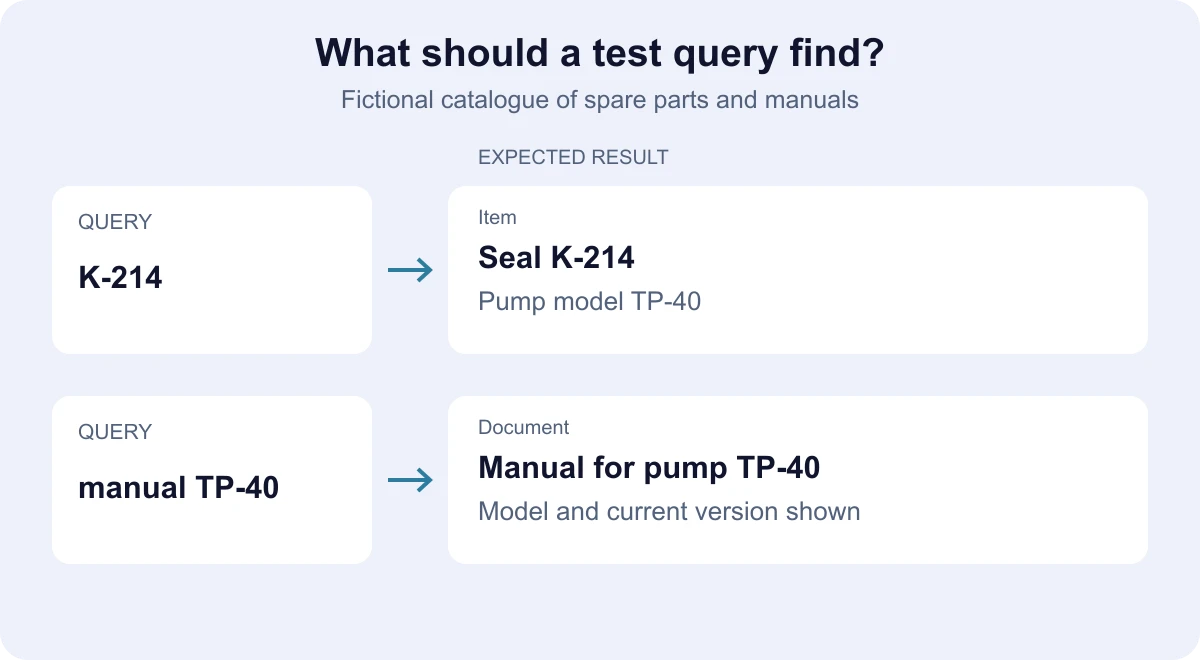
For the part number, we expect an item card with its name and model information. The manual query should bring the document forward. Show the version or model beside a document if you maintain that information. This helps customers distinguish a document from a product and tell two similar devices apart.
If "rubber ring for TP-40" fails to return the expected seal, investigate the cause. The term may be missing from the content or agreed synonyms. The item may have been found but ranked below less useful results. Each case needs a different change, so run the same queries again after the fix.
What should visitors see when there is no result?
Keep the entered term so the visitor can edit it. Let them clear filters, browse suitable categories or contact someone for help choosing. Label any alternatives as suggestions so customers know they still need to check whether they are suitable.
Distinguish a query with no matches from a failure to load results. If the service did not respond, the message should offer a retry. Saying the company has no matching item would be the wrong response to a technical interruption.
How do you test content changes and access permissions?
Agree when new or updated content should appear in results. Test publishing, renaming and withdrawing a page. Check the result snippet and whether the old link still leads to the expected destination. Editors need to know how long to wait for a refresh and who handles stale results. Connect this process with editing website content through a CMS.
For a portal with sign-in, test search under different user roles. A user without permission must not receive confidential information through a title, snippet or suggestion. The team should check permissions when returning results and when opening the document itself. The OWASP authorisation guidance recommends validating permissions on every request.
What should you test on a phone and with a keyboard?
On a phone, open search, enter a longer term and change a filter. Open a result, then return and check that the query and chosen filters remain. Repeat on a slower connection to examine the waiting message and behaviour after an error.
The field needs a name that assistive technology can identify. The W3C guide to field labels explains associating a label with its control. Try entering a query, submitting it and opening results with a keyboard, with visible focus throughout. If suggestions appear while typing, also test moving through them and closing the list. The technical team can use the W3C combobox pattern for that type of control.
How do you agree acceptance criteria and future improvements?
In the test record, enter the query, user role, expected result and actual result. Include opening the result and returning to search. Agree which failed cases need resolving before launch. Use the same record later to check an upgrade.
After launch, review unanswered queries and cases where visitors choose the wrong content, with agreed data protection measures. Remove personal or confidential information entered into the field before adding examples to a report. For an estimate to add site search to a website, prepare the content types and a few test queries. If search covers accounts and permissions, include user roles in the project description you send to the team.