
Changing web hosting does not require moving business email if the mailboxes stay with the same provider and their DNS and server settings remain valid. Before the switch, check whether the old hosting plan also runs your mailboxes or sends contact form messages. The new site can load normally while customer enquiries stop arriving.
What exactly is moving?
Find out who maintains the website, where DNS records are managed and where the business mailboxes live. These may be three separate accounts. Check what will be turned off when you cancel the old plan. If account responsibilities are unclear, start with our domain, hosting and website access handover guide.
Scroll the table sideways to see all columns.
| What changes | What to prepare | What to verify |
|---|---|---|
| Web hosting only | List the web records and how the website sends email. | The site works at its new destination, and mailboxes and forms pass separate tests. |
| Web hosting and DNS provider | Compare DNS zones and agree how to handle DNSSEC if enabled. | The new zone gives the expected web and mail answers before delegation changes. |
| Mailboxes move too | Prepare accounts, aliases, forwarding rules and a message migration plan. | Mail reaches the right place and the agreed history and access are available. |
Which DNS records should you preserve?
Export the current DNS zone or list each record and its purpose. For the website, check the root domain and the www address, including any IPv6 record in use. For incoming email, check the MX records, their priorities and the addresses of the servers they refer to. If an MX record points to a name whose IP changes with the website, the unchanged MX record can still send mail to the wrong server.
SPF helps receivers check whether a server can send for the domain used by the SMTP sender. A DKIM signature lets the receiver verify the signing domain and the integrity of signed parts of the message. DMARC checks whether the visible From domain aligns with a domain that passed SPF or DKIM, and publishes a policy for messages that fail. Compare records with your provider's instructions and account for every sender, including forms and business applications. Google’s email authentication guidelines explain these checks.
If you use Cloudflare, check the proxy status of the mail hostnames. Cloudflare's standard HTTP proxy does not carry SMTP, IMAP or POP3. Review your email provider's required destinations and records alongside Cloudflare's email troubleshooting guide.
How do you prepare a DNS provider change?
Prepare the new zone and compare it with the existing one before changing nameservers. Check records used for domain verification, email client setup and subdomains used by other services. If DNSSEC is active, have the administrator agree the sequence for delegation and DS records using both providers' instructions. An old DS record that no longer matches the zone can stop the domain from resolving.
TTL indicates how long a DNS answer can remain cached. If you lower the TTL of a web record, do it in advance: already cached answers can remain until their previous TTL expires. Lowering the TTL of one web record does not automatically shorten caching for delegation or DS records. Cloudflare's DNS migration preparation guide explains these checks.
Example: mailboxes work, but website enquiries do not arrive
Imagine a business that keeps its existing DNS and uses a separate mail provider. The new website runs on a different host. Staff can send and receive ordinary email, but the contact form previously used a local mail service on the old server. That sending method is not configured on the new host.
In this situation, leave MX alone while you diagnose the form. First check how the new application sends mail, whether it uses an authorised SMTP or API account, and which address receives enquiries. Repeat the test and confirm delivery in the actual inbox. If the form sends an automatic reply to the visitor, test that separately.
What should you test before and after the switch?
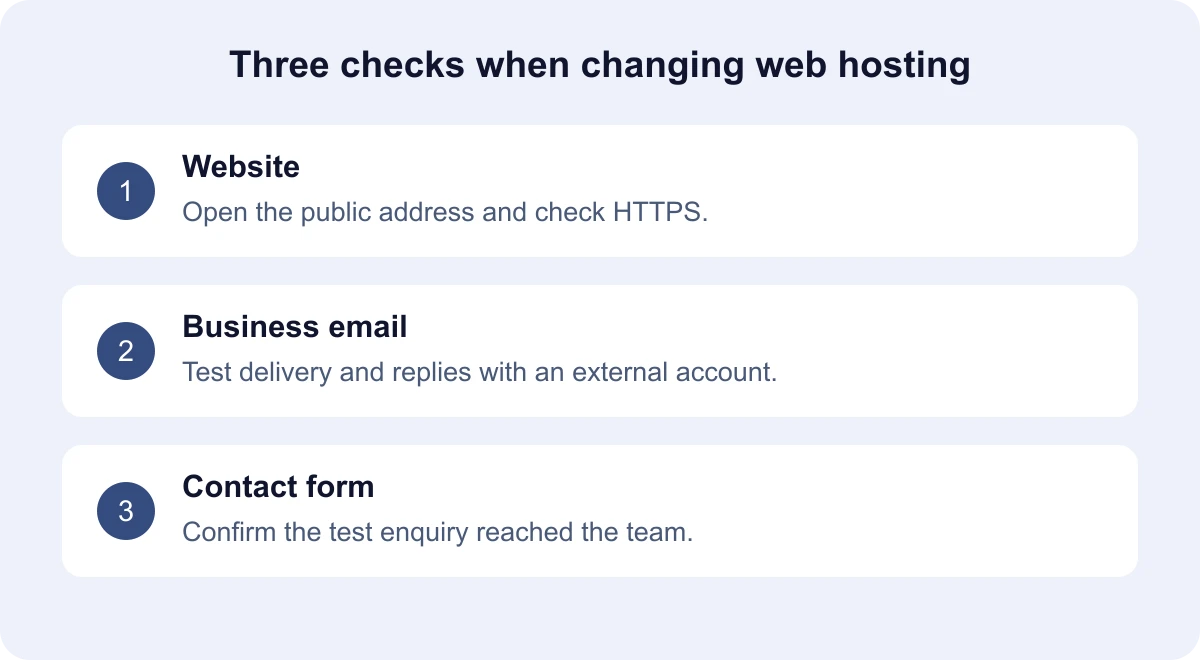
- Before the switch, open the prepared site, check HTTPS and record how the current mail flows work. Repeat the checks at the public addresses after the change.
- Send a labelled test message from an external account to a business address, reply and confirm it reaches the external account. Check the spam folder and, when needed, the authentication results in the message headers.
- Check shared addresses and forwarding rules the business relies on. Submit a labelled form enquiry and verify delivery rather than relying on the success message shown on screen.
- With the people responsible, test other important senders, such as an invoicing service. Record the time, expected result, actual result and any delivery error.
What else should you check when mailboxes move?
Prepare the new accounts, shared mailboxes and forwarding rules before changing MX. Agree which messages, folders and attachments to migrate, and list calendars and contacts separately if staff use them. Plan a final sync for messages that still reach the old service while DNS answers differ. Check access from the devices the team uses and confirm that all authorised senders work with the new settings.
When can you cancel the old plan?
Before the switch, agree who decides whether to roll back and what failure would trigger it. Keep the previous values for any records you change, a website backup and access to the old services. Reverting DNS records takes time because of caching. If both environments have received messages, enquiries or orders in the meantime, agree how to retain those new records and verify delivery after rollback.
Cancel the old plan once you have confirmed that no required service still depends on it. For an estimate for building or moving a website, send a list of providers and the flows you need to test. Keep passwords and access keys out of that list.